Das Web, scheibchenweise

Das Web-Scheibchen Widget ist in Plasma (in kdeplasma-addons, noch bis zum Git-Umzug am Wochenende) seit 4.4 enthalten. Ein Web-Scheibchen ist ein Teil einer Website auf dem Desktop. Das kann hilfreich sein, wenn man einen Ausschnitt einer Website im Auge behalten will, allerdings dafür aber keinen kompletten Browser starten will.

Richard Moore und ich haben das Webslice Applet auf der Akademy 2009 in Akademy geplant, richmoore hat dann einen Prototypen geschrieben, den ich in ein einfaches Plasma Widget umgesetzt habe. Seit dem ersten Release zusammen mit 4.4 hat sich allerdings wenig dran getan. Es funktioniert im Prinzip recht einfach: Wir laden eine Website in einem Webkit Widget (auf der Plasma Canvas), blenden die Scrollbalken aus, scrollen an die richtige Stelle (zur Geometrie einzelner Element kann man Webkit befragen) und zoomen soweit ein oder aus, dass der Ausschnitt in’s Widget passt. Das funktionierte so recht gut, allerdings blieben zwei Probleme: Das Vergrössern bzw. Verkleinern des Widgets war viel zu langsam, und dadurch nicht flüssig genug, und die Auswahl des Ausschnitts war alles andere als intuitiv — man musste den richtigen CSS2 Selector eingeben, diesen also erst aus dem Quellcode der Website puhlen.

Gestern abend habe ich eine Reihe Änderungen eingepflegt, die hier deutliche Verbesserung bringen. Nach Review auf der plasma-devel Mailingliste habe ich diese Änderungen auch in den 4.6 Zweig committet, d.h. dass sie mit 4.6.1 in ca. einem Monat zur Verfügung stehen werden. (Oder ihr besorgt euch den Code aus KDE’s SVN bzw. Git, unter kdeplasma-addons/applets/webslice.) Schau’n wir mal, was ich so geändert habe…

Performance

3 Web-Scheibchen mit verschiedenen Ausschnitten von mehreren Seiten Vor allem das Vergrössern und Verkleinern des Widgets machte eigentlich kaum Spass. Das Web-Scheibchen Widget benutzt eine Webkit View, und zeigt die Seite an einer bestimmten Position an, mit einem zur Plasmoidgrösse passendem Zoomfaktor. Soweit, so gut. Dem Performanceproblem lag zugrunde, dass das Widget während dem Andern seiner Grösse so viele Resize Events abfing, dass es mit dem Zoomen und Positionieren nicht nachkam, und diese sich aufstauten. Dem habe ich Abhilfe verschafft erstmal die Codepfade, die zum diesen “resize events” führen aufgeräumt habe, sodass dieser Vorgang nur stattfindet, wenn es wirklich nötig ist. Dann habe ich mittels eines QTimers verschiedene, schnell aufeinanderfolgende Events zusammengefasst. Beim Zoomen des Widgets war auch noch so Einiges drin, wenn man die Backingstore zeitweise einfriert, und das komplette Neurendern der Seite dann um einige Millisekunden verzögert. Zusammen damit habe ich auch die Seitenverhältnisse flexibler gemacht, diese waren vorher fest eingestellt. (Man kann in Plasma immmer noch unabhängig von den Seitenverhältnissen verkleinern/vergrössern, indem man die CTRL Taste gedrückt hält.) Das erste Problem ist also gründlich gefixt.

Verbesserte Anwenderfreundlichkeit

Während der Konfiguration schaltet das Web-Scheibchen Widget in den Übersichtsmodus Nächster Punkt: Ergonomie. Wie schon erwähnt, schränkt das notwendige extrahieren von CSS2 Selektoren aus Webseiten-Quellcode die Zielgruppe des Widgets gelinde gesagt etwas ein. (Eigentlich sind die recht einfach, was aber nicht heisst, dass ich es auch meinem “Resident non-Geek” zumuten würde — ich hab’s probiert und empfing einen recht leeren Blick als Dank). Ich habe einige Zeit drüber nachgedacht, wie man sowas elegant umsetzen kann. Erstmal wollen wir Quellcode-lesen während des Setup vermeiden, es sollte einfach sein, den gewünschten Ausschnitt auszuwählen, und das Feedback für den Anwender sollte so direkt wie möglich sein. Erster Streich: Die Eingabezeile für das CSS Element hat sich verwandelt in eine editierbare Combobox, über deren Dropdown-Menü man jetzt Elemente auswählen kann. Zweiter Streich: Die URL Eingabezeile hat einen Reload-Knopf zum Nachbarn bekommen, mit dem man eine neue Seite in die Voransicht laden kann (damit werden auch die Elemente in der Combobox erneuert). Dritter Streich: Das Widget zeigt jetzt während der Konfiguration eine Übersicht der ganzen Seite an, und markiert das gerade ausgewählte Element. (Mann kan, wie in allen Comboboxen dann auch mit Maus bzw. Pfeiltasten durch die Liste navigieren, gleichzeitig sieht man im Widget welcher Ausschnitt sich hinter dem kryptischen Namen des Elements (#myid, zum Beispiel) verbirgt. Sobald man bestätigt, zeigt das Widget dann den Ausschnitt passend gezoomt an.

Alles in allem nicht ganz so triviale Änderungen. Da das Widget allerdings bisher kaum benutzbar war, die Änderungen sich recht einfach ohne Änderungen an den Übersetzungen vornehmen liessen, und das Risiko auf Regressions in anderen Teilen sehr gering war, habe ich die Änderungen auch in den 4.6 Zweig eingepflegt. Damit werden sie mit 4.6.1 nächten Monat, und mit openSUSE im März mitgeliefert, und wir somit vielleicht dem ein oder anderen Anwender eine Freude bereiten können.

Hier und da gibt’s natürlich noch Verbesserungsmöglichkeiten. So kann ein erklärender Tooltip hier und da sicherlich nicht schaden, flexiblere Grössenoptionen, wie Proportion, Originalgrösse der Seite (interessant für “flüssige Layouts”), zum Beispiel. Ich habe dafür erstmal sinnvolle Voreinstellungen gewählt, abhängig vom Feedback auf’s jetzige Featureset sehen wir dann mal weiter.

4 Minuten Hobbychirurgie

Abschliessend noch unsere Mitmach-Runde im Mitmach-Web 2.0! Wir haben einen netten Mechanismus, mit dem man kinderleicht eigene Web-Scheibchen-Widgets erstellen kann. Dazu kopiert ihr einfach eine bereits existierende Web-Scheibchen .desktop Datei. Dateinamen ändern (wir wollen ja nichts anderes überschreiben), Namen, Kommentar, ev. auch Übersetzungen updaten (oder einfach löschen, falls nicht nötig), Autor, etc, Einträge die man nicht versteht, einfach drin lassen, auf jeden Fall aber die Plasma Library und Mimetype Einträge. Fügt dann eine Zeile wie diese hinzu, um das Web-Scheibchen auf das Element mit id=”myid” im Tag von der Frontpage von mysite.org läd:

 X-Plasma-Args=http://mysite.org,#myid

Diese Datei muss man dann nur noch nach ~/.kde(4)/share/kde4/services/, kbuildsycoca4 ausführen, um die Plugins und Metadaten auf den neusten Stand zu bringen, und das Widget über den Widget Explorer zur Plasma Arbeitsfläche oder dem Netbook hinzufügen.

Eine mögliche Entwicklungsrichtung für die Zukunft wäre dann, diese selbsterstellten Web-Scheibchen über opendesktop.org mit anderen zu teilen, quasi “Social Desktop für Web-Metzger“…

Slicing up the Web

The Webslice applet has been in Plasma (kdeplasma-addons, to be precise) since 4.4 already. It allows the user to display a part of a webpage on the desktop. This can be useful for monitoring only a specific part of a webpage, or just to display something nice.

The Webslice applet has been written by Richard Moore and me as a functional prototype, but didn’t see much love since it was added to Plasma for 4.4 in 2009. Its basic mechanism is that you specify a “slice” within a website, which is a rectangular region. This region then gets shown in the applet, and resizes dynamically with it, zooming the “slice” in and out. The widget basically worked, but had two significant problems: Resizing was very sluggish and bound to a kept aspect ratio, and you needed to know CSS2 selector syntax to actually use it.

Earlier tonight, I’ve committed a set of changes which address these problems, and backported them after review on the plasma-devel mailing list to the 4.6 branch, so these changes become part of Plasma 4.6.1, which will be the first service and translation update to 4.6.0, which we released yesterday.

Performance

3 Webslices showing different parts of different webpages in diferent sizes First, the resize issue. The Webslice applet uses a webkit view, which displays the page and is positioned (basically scrolled with scrollbars switched off) and zoomed to fit into the area the applet covers — fairly simple in fact. The performance problem was caused by too much resizing which got passed down the stack (if you scroll and zoom a website every couple of milliseconds, it becomes quite heavy on the CPU easily. I’ve addressed this by cleaning up the codepathes that lead to resizing, so that it only causes the resize (and thus the repositioning and zoom of the webpage) when absolutely necessary. Resize events from the applet are now compressed a bit, so that we don’t get more than 10 resizes a second. That’s “good enough” for the user to see what effect his mouse-dragging has, but doesn’t have the sluggish effect. Then, while resizing, I’m freezing webkit’s tiled backing store, for an additional performance boost. The result is very noticeable, the lag and CPU-hogging while resizing is gone, and the sizing of the applet is much less unwieldy with these changes. In that process, I’ve also switched to a non-fixed aspect ratio. Bug #1 thoroughly fixed.

Improving Interaction

While configuring the widget highlights the selected slice in the page overview Next-up, slice selection. As I already mentioned, that was neither easy, nor user-friendly. (If you’re running, 4.4+, give it a shot, it really sucks ;-).) First off, you need to know CSS2 selectors (they’re quite easy, in most cases you want #myid for an element in the page being marked with id=”myid”), but still limit the utility of the widget to a rather select group. (Does this make the widget 1337?)I’ve been pondering how to best offer this to the user. It should be easy to pick a slice from all the elements that are there. The first thing I did was to turn the lineedit where you’d input the CSS selector (#myid or whatever) into an editable combobox, already containing elements to choose from. That made picking a slice much more “determistic”. Still, the #myid names are not always telling you what part of the page their actually displaying, so some more feedback is desirable. My approach there is the following: When the user opens the configuration dialog, the page is zoomed out and fully shown in the webslice applet, it switches to a preview mode. The user can now enter a different URL, and temporary load this in the slice applet. The combo box containing the elements is now updated to contain the elements of the new page. Website picked, now let’s pick a slice. By selecting a slice from the combobox, the preview mode highlights the position of the currently selected slice in the widget. You apply and it zooms in there. A nice touch is that you can “scroll” through the slice by hovering over the combobox, or flip through them using the arrow keys while focusing the combobox.
All in all, not quite unintrusive changes, but considering the widget wasn’t of much use due to above described problems anyway (there was one bug filed against it — likely a bad sign, I’m not that good a hacker). Marco and Aaron were kind enough to review the patches and agreed that they won’t hurt much, but do provide a nice set of improvements we’d like our users to get fairly quickly, not just next summer with 4.7.

There are a couple of loose ends left for 4.7, though. As I wanted to keep the possibility of a backport open, I’ve not changed any strings in the widget, adding an explaining tooltip here or there might be useful, but also some more flexible sizing options (what proportions to use for the initial rendering — that matters for fluid layouts, how to clip if the size of the widget doesn’t match the aspect ratio of the slice, etc. I’ve chosen “sane defaults” for these things now, but it’ll probably be nice having that available as an option to the user.

Create your own webslice Plasma widgets in 4 minutes

There’s one neat thing left to tell about the webslice: You can easily create your own preconfigured slices. In order to do that, copy and rename the .desktop file, change name, comment, icon, if you wish, then add a line like

 X-Plasma-Args=http://mysite.org,#myid 

Copy the file to ~/.kde(4)/share/kde4/services/, run kbuildsycoca4 and add your newly created webslice to your Plasma using the widget explorer.

A possible direction we can take this is to add a webslice category to opendesktop.org, and start sharing our webslices with each other…

4.6.0 Available

I’ve just pushed the relevant buttons to make the release of 4.6.0 a public fact. Packages should appear shortly for your favourite operating system, I know that openSUSE packages are available from Factory now, so start your zypper already.4.6.0 Released

The release is actually a pretty big thing, it adds a lot of new features, some of which very visible, others being less noticable. There’s the mobile profile for example, which makes it much easier to use KDE frameworks in your mobile application. Then we have the re-vamped activity manager, that adds a way to group applications in their context and makes it possible to manage these activities like sessions. So head over and read what’s new in the Plasma Workspaces, the applications and the KDE development platform.

Solides 4.6: Neuerungen in der KDE Hardwareverwaltung

In KDE Plasma 4.6, dass im Januar erscheinen wird, sind so einige Sachen, die den Bereich Hardwaremanagement verbessern. In diesem kurzen Artikel highlighte ich zwei davon: Netzwerk und Powermanagement.

Energieverwaltung

Netzwerkkarten Details im Networkmanager PlasmoidHier haben die meisten Änderungen unter der Haube stattgefunden. KDE’s Hardware Abstraktionsschicht Solid kommt jetzt gänzlich ohne HAL aus und baut auf die U* Familie, die aus UDev, UPower und UDisks besteht. Eine Änderung in Solid ist, dass jetzt mehrere Backends gleichzeitig ihre Arbeit machen können, was auch notwendig ist, da das monolithische HAL durch die modulareren U* Komponenten ersetzt wurde. Für Applikationsentwickler ändert sich allerdings nichts, alle Solid Funktionen funktionieren nach wie vor, nur benutzen jetzt im Hintergrund einen anderen Mechanismus um ihre Arbeit zu machen.

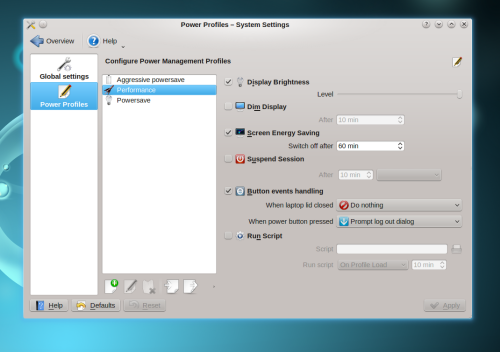
Eine weitere Änderung hat das Solid Team in mit PowerDevil2 eingeführt. PowerDevil ist ein kleiner Daemon (eigentlich ein Plugin für den KDED) der verschiedene Energiesparfunktionen bereitstellt, wie z.B. das Suspenden der Maschine und Energiesparprofile. PowerDevil2, der in 4.6 neu ist, ist modular aufgebaut und kann mit eigenen Aktionen erweitert werden. So können Benutzer das Verhalten der Energiesparfunktionen komplett selber bestimmen, und sind nicht mehr von hardcodierten Funktionen die mitgeliefert werden abhängig. Diese Action Plugins integrieren sich nahtlos in die Profileinstellungen, wie man auf dem Screenshot sehen kann. Das Batterie Plasmoid, über das auch andere Energieverwaltungsfunktionen, wie z.B. Suspend und Hibernate verfügbar sind glänzt im 4.6 Releasezyklus vor allem durch Bugfixes. So habe ich diese Woche noch 4 Patches, die Aurelien bereits in den Trunk Zweig eingeplegt hatte auf das bereits abgezweigte 4.6 Branch zurückportiert.

Für 4.7 plane ich, erweiterte Informationen über den Energieverbrauch und Zustand der Akku(s) hinzuzufügen, ich habe mit der Entwicklung davon bereits begonnen. Dazu allerdings mehr zu einem späteren Zeitpunkt, jetzt liegt erstmal der Fokus auf Plasma 4.6, und danach darauf, das openSUSE 11.4 Release rund zu gestalten.

Netzwerkverwaltung

Energieverwaltungs EinstellungenopenSUSE liefert im 11.4 Release, das auf KDE 4.6 aufbaut das neue Netzwerk Management Widget mit, ein Plasmoid dass es erlaubt Netzwerkverbindungen aufzubauen. Im Hintergrund baut es dabei auf den bekannten NetworkManager auf. Um die Jahreswende sind hier vor allem noch VPN Funktionen hinzugekommen, dank einiger freundlicher Entwickler, die mir Patches zusandten. (Ich selber benutze kein VPN, bin daher auch auf die Mitarbeit anderer angewiesen.)
Ansonsten unterstützt das neue Applet Wifi und Ethernetverbindungen sehr gut, ist aber auch für’s mobile Internet bereits gerüstet. Die Integration des Modemmanagers ist bereits weit fortgeschritten, und sollte funktionieren. (Auch hier kann ich’s nicht selber testen, falls es hakt bitte Bugreports einstellen. Wer drahtlose Netzwerke benutzt, die ihre SSID nicht broadcasten, d.h. die "unsichtbar" sind, hat im Moment leider noch Pech, die Unterstützung für diese Netzwerke ist noch nicht komplett. Man kann sich aber behelfen, indem man (als root) "iwlist wlan0 scanning essid <MYSSID>" ausführt. Danach ist das Netzwerk in Plasma sichtbar, und man kann sich damit verbinden. (Dieser Vorgang ist nur einmal nötig, da das Netz nun in Zukunft direkt erkannt wird.) Visuell bin ich mit dem Netzwerkeinstellungsplasmoid schon recht zufrieden, d.h. im Grossen und Ganzen tut es das, was es sollte. Es gibt noch einige Sachen, die ich kurzfristig beheben möchte, so kann es vorkommen, dass die Liste auf der rechten Seite leer ist, d.h. keine vorkonfigurierten Verbindungen zur Verfügung stehen. In dem Falle sollte man drahtlose Netzwerke in der Nähe sehen. Meinerseits liegt der Fokus hier also vor allem auf Polishing und Bugfixing, sodass es nicht nur cool aussieht, sondern auch so reibungslos und unauffällig wie möglich funktioniert. Es sind allerdings auch nette Features wie Unterstützungen für "system connections", die dann auch aktiv bleiben, wenn man ausloggt.

Schizophrenic clock effect

On the train back from the openSUSE conference, I read an article about improvements in Plasma 4.5 in the German edition of Linux Magazin. The author noticed the re-designed notification area with its more consistent and clean look, but also mentioned that the clock looks visually somewhat outdated in the panel now. Fair enough, most of the notification area has seen a bunch of iterations over their looks, but the digital clock didn’t really receive much visual love other than bugfixes in alignment and layout of the clock. I thought a bit about what would make the digital clock look better, and identified two things: the full bleed color sticks out a bit, and the clock looks flat compared to its neighbours in the panel.

Touching up Plasma's digital clockAfter a couple of iterations and with feedback from some Plasma (and non-Plasma people) I have just committed to Plasma trunk what I think is a good-looking solution, and a touch-up of the panel, making the whole look more belonging to each other. As you can see in the comparing screenshots, it also works well with a dark theme, such as Oxygen. What I did is the following: First, there’s a backdrop behind the clock’s text display now, in the background color defined in the Plasma theme. On light themes, such as the Air theme, this produced an emboss effect, making the time appear slightly sunken into the panel. On dark themes, the backdrop is dark, and hence looks like a shadow, so the time seems slightly elevated. This difference in appearance has to do with how the human brain interprets dark and light colors. Wired has an interesting article giving some background on this — it appears that schizophrenic people’s brains interpret this in a different way.

Clock with new effect on the desktopSecond, the time is now also displayed with a translucent gradient in the text and has a very subtle appearance of a lighting source, making it looks less flat and a tad more natural. The translucency gradient makes the time stick out a bit less, while still having enough contrast to be able to read it. The effect is a bit more clearly visible in a bigger clock, so here’s another screenshot of that. Thanks to Fredrik Höglund for this nice idea and the pointers how to do it. (You define a gradient a QLinearGradient, create a QBrush using this gradient, then you can instantiate a QPen using this gradient brush, and use this pen to paint the text.)

This might look like a small improvement, it’s nevertheless time well spent. The clock takes space on everybody’s screen, most of the time, so it should well be doing its job in an elegant way.

Plasma Photo Collage

ide Collage of random photos from my collectionToday while going through some parts of my photo collection, I’ve created a collage of some photos. It was actually more or less accidental since I was choosing photos to be printed and framed, but I couldn’t keep myself from arranging the photos nicely on my desktop. I’m using a dual screen setup on my desktop, and while browsing the photos on the left screen, I dragged the photos I’d evaluate for printing onto the other screen, creating Picture frame widgets displaying them when dropping the photos (this even works for remote files, pretty cool). The work-flow this way is actually pretty close to how I’d do it with real physical object, browsing through stacks of photos and putting a selection aside for further investigation.

The photos I happened to choose are taken in various parts of the world, there’s the old ship in Jamaica, the entry sign to Bora Bora in Brazil, Edinburgh’s castle, the entry hall of a spa in Budapest, a Spanish rooftop, Kevelaer’s basilique and of course a bunch of photos taken in Nijmegen, my home town — notably the perfectly boiled egg.

What kind of fun work-flows did you discover while using Plasma?

Getting Email Done: The Stack and the Heap of Lion Mail

In my previous article on this subject, I have introduced Akonadi as the personal information beehive on your computer, explained how it works, how it is designed and what the migration process to an Akonadi-based Kontact looks like. (openSUSE users should also take a look here.) In this article, I will dive into the workspace parts we’re introducing on top of Akonadi, notably the new email notifier system in Plasma – Lion Mail.
The Lion Mail email notifier is at its base your "you’ve got mail" icon in the panel. For users with more complex and high-traffic email habits, it offers a basic set of workflow tools to manage the daily stream of emails more efficiently and ergonomically. In this article, I’m describing some of the design concepts behind Lion Mail’s email notifier and its workflow features.

In the panel, you can quickly see if there are new emailsComplex email workflows are something I wanted Lion Mail to excel at. The idea is to make dealing with email as flexible as we can, so you can project your workflow onto it and have it make the daily flow of email more manageable, and less disturbing in the real work you want to get done. By default, the Lion Mail email notifier shows up in your panel when a new email arrived in your inbox, by clicking on it you can access the list of your latest unread emails in a small popup-window. The basic use-case is quickly checking if you’ve got new email. I will not dive too much into implementation details, as this article is all about work-flows and how it affects the user experience.

The idea is that, at all times you can see if there’s email to deal with. but not have it jump in your face. In order to be able to quickly dismiss something as "I’ll deal with that one later", or "ok, got it", there’s two queues in Lion Mail, the stack and the heap of Lion Mail.

The Stack — Incoming Emails

The popup shows a list of the new emailsThe stack is your incoming emails queue, it lists new emails in one or more folders. By default, that’s your inbox, but you can configure it to monitor any folders you like (yes, combining them from multiple folders is built-in). The incoming emails queue is a transient thing, it’s your stream of incoming emails, and the first time a new email gets your attention (but doesn’t shout for it). The stack allows you to dismiss new emails, or mark them as read or important. The idea is that new emails might fall into the following categories:

  • "Not right now" – A new email will get your attention later. You take notice of its existence now, but don’t have time right now to tend to it. It stays marked as unread, you’ll get back to it later.
  • "This I really have to deal with, later" — If you don’t respond to this email, the world implodes into dark matter, or your head gets torn off by zombie-chinchillas. You mark the email as important, for extra attention, you can leave it marked as unread.
  • "I am bored enough" — An email you deal with right away, either because it’s important or more interesting than what you’re currently doing, or maybe because it’s quicker to reply right now. In those cases, you open the email in your mail client to read it and possibly reply.
  • "OK" — You notice an email and know enough by peeking at it. It can drown in your inbox from here on, you mark it as read.
  • "v14gra on loan" – Something slipped the spam filters. You just want it gone. You hit the delete button and it won’t bother you again.

These are a couple of possible reactions to new emails. By offering the tools to deal with such situations at hand, in the context of these incoming emails, we can pre-sort the stream of mail while we receive it.

The Heap — Important Emails

Important emails are accessible in a separate listThis is where the heap comes in. The heap is an optional second list of emails you can show in the Lion Mail email notifier. It simply shows the important emails in your monitored folders. This way, it offers you a list of things you need to deal with, in essence your to-do list of emails. By putting them into a separate list, we have two overlapping categories of emails you want to deal with. Lion Mail can either display those important emails in a combined list, or using separate tabs for new and important emails. The latter is likely to appeal to David Allen fans, Lion Mail certainly is inspired by some of his ideas.

In the setup you can specify which folders to monitor and wether or not to show important emails

Email Items

The individual email items in the heap or stack offer a couple of options to open emails in your mail client, for marking emails as read and as important, and for deleting it. Needless to say that these buttons operate directly on the email, so the moment you mark an email in Lion Mail, it’ll change in KMail (or any other Akonadi-based email client) as well. When an email doesn’t satisfy the criteria for the heap of stack anymore, it fades out over a period of 5 seconds, so you get some "undo grace-time" if you clicked wrongly. The emails themselves show by default subject, sender, date and flags, you can expand to show some of the body as well. Email items employ a hover interface, when you move the mouse over an email, it reveals three controls as an overlay which offer flagging and trashing an email. Clicking on the icon opens the email in your mail client, you can also drag an email from these lists into your email client or Plasma workspace. I’ve chosen for a hover interface mainly for two reasons: less clicks and more discoverability. The emails don’t have a context menu right now, but there are a couple of useful options we could add there, for example forwarding or replying.

Emails can be sorted using flags directly from the popup

Excerpts — NLP people, listen up!

If someone comes up with a clever and useful implementation for email excerpts, I’m all open. Right now, I’m just showing the first couple of hundred characters in order to not blow the size of the widget beyond what’s reasonable in a small popup. As you can deduct, I’m not the most inspired mind in the world of language processing. In the UI, I’d rather avoid having to use scroll bars inside the expanded email body, as the list already might have scroll-bars. Nested scroll-bars will lead to annoying behaviour for mouse-wheel and flick-scrolling, so that should be avoided. The most elegant thing to do here is excerpting the interesting parts of the email, by skipping empty lines and possibly line-breaks, by removing reply-quoted parts, and so on. K9-Mail (a really good email client for Android) does this quite well, it’s often possible even from one line to judge an email’s content. We can easily fit 5 lines into the expanded email widget, and possibly even more, so I’d expect that with the right algorithm, we could do excellent there. If you’re into that kind of stuff, send me a piece of code that turns an email body (as QString, if you want) into a 200-300 character long excerpt, it should be LGPLed code and you’ll be properly credited. Sounds like a nice small, self-contained hacking project for a fall evening, no?

Otherwise, I wonder if "the other Sebastian"’s recent Nepomuk accomplishments in excerpting documents play into our collective hands, or we’re in his of course. :-)

Emails as first-class citizens in your workspace

There’s if course a lot more in the pipeline. In principle, Lion Mail can hold any email collection, existing folders, but also virtual collections, such as search folders or combinations of multiple folders. Lion Mail represents itself as an icon in the panel’s notification area, you can enable it in the notification area’s settings. It’s also possible to put Lion Mail widgets on the dashboard, desktop or netbook’s new page, you can of course add multiple Lion Mail applets holding different collections one one or different activities, and this way depending on what you are doing, think of showing your work’s inbox in your "work" activity, showing private emails in your "freetime" activity or showing neither in your hacking activity. In Lion Mail itself, that would be very easy to do, It’s built in mind with showing arbitrary sets of emails, the new email and important email queues are just specialized version of a generic email list.Email lists can be put on the desktop, and switched depending on your activity

Drag and drop is also one of the things that got a little bit of attention while developing Lion Mail. You can drag emails from Lion Mail into KMail for example to move or copy them to another folder. Plasma is also receptive to dropping mails (and in the future mail folders) onto the desktop. Lion Mail includes a Plasma widget showing an individual email. It can take different sizes, so you can either have a bunch of small emails floating around, or individual emails with full text on your desktop or dashboard for reference while working, as it often comes handy to have a related email available for a quick check if you’re looking into something.Single emails can be put on the desktop as well, for quick reference

Release plans and test-driving

In its current state, Lion Mail email notifier is already quite usable. The work to make it release-ready consists of completing some features, refreshing of monitored folders directly from the applet, and trashing emails. There’s also some smaller interaction glitches I’ll fix before it can make its way into Plasma cq. Kontact 4.6.0. There’s suspending removing items under your mouse (or finger) so you don’t accidentally click on the wrong email, some display funkiness here and there (spot the lack of space underneath emails in the screenshots), and the excerpts extraction I invited input to above. You’re already most welcome to try it and give feedback. It’s currently located in playground and will eventually move through the kdereview process into one of the released modules — I haven’t figured out which one would be the most suitable exactly. If you want to build it right now, I have to admit that it’s not completely trivial from scratch, as it requires kdelibs and kdepimlibs from trunk. If you have a reasonably recent 4.6 (trunk) snapshot installed, you should be good to go. Lion Mail does not offer the option to configure email accounts, you can do that from KMail2 or akonadiconsole.

Famous last words

The heap and the stack of Lion Mail offer the opportunity to create a more efficient workflow with your emails. By dealing with emails effectively as they come in, but without a context-switch to the full email application, it offers more workflow-based email management. The underlying idea behind Lion Mail is that emails become first-class object in your user experience, to integrate them as artifacts of your interesting information, rather than banning them into a monolithic application like traditional email clients. "Light-weight email work" can be done directly from the workspace, referencing emails in other tasks becomes a lot easier, the traditional email reader still serves as the work horse for most email reading (as opposed to noticing and referencing). Lion Mail provides the usual feature set in a more elegant and context-rich way. It is also heavily optimized for people with larger amounts of emails, and integration these streams of new and interesting emails deeper into the workflow of the user.

Demystifying Akonadi.

The exotic-sounding ‘Akonadi’ refers to both a mythological figure and the KDE platform’s central information framework. This article will dispel some of the mystery about how Akonadi will improve performance and integration, and how it is being rolled out into KDE applications. I’ll also provide some insight how the technology works, and what will become possible with this new PIM framework.

Many people have been asking what the status of the new, Akonadi-based Kontact Groupware suite is. As I’ve been working closely with the PIM hackers, I thought I’d give my readers a heads-up on what’s going on and what to expect. In this article, I will often take KMail as an example for the port, but similar things apply to the other PIM applications that form the Kontact suite as well.

The What & How?

I’m sure many of you haven’t heard the name Akonadi yet, so let me quickly explain what it is. Let’s get technical.

Akonadi is a groupware cache that runs on the local machine, a shared data store for all your personal informatio. Akonadi offers a unified API to receive and synchronise data with groupware, email servers or other online services. Agents called “resources” are responsible for communicating with the remote service, say your email server. These resources run out-of-process and communicate via separate control and data channels with the mothership (your local Akonadi). Resources are easy to implement and can interface any data source with Akonadi, be it your local calendar file, your companies groupware, email servers or address directories, or anything else you can come up with. More on that specifically later.

The Akonadi groupware cacheA common misunderstanding is that Akonadi is some sort of groupware server. In fact, Akonadi does not store any data itself, but just provides a common means to access data to your local applications.

So Akonadi does not store user data, it caches it. The user data is still stored in the traditional formats, be it on an online server (for example IMAP) or local files (ICAL calendar files). Locally, Akonadi provides a cache to speed up access and to make collections (email folders, for example) and their items available offline. To allow Akonadi to work on both powerful desktops and lean mobile devices, Akonadi can use different databases for its cache. Currently, the most complete backing store for Akonadi is MySQL, but PostGreSQL and sqlite backends are also available. In the case of MySQL, the database is started and handled by Akonadi itself, using a local socket, and no network access. This is intentional, for speed and security, since Akonadi’s database is really only a detail of the implementation.

The storage concept of Akonadi is straightforward. The team looked at many types of PIM data and found that items stored in folders are common to all of them. In Akonadi, Items represent mails, contacts or other individual pieces of data Folders are generally referred to as Collections, which can contain other Collections. Items themselves carry a type (using the freedesktop.org standard mimetype definitions), metadata and the actual data payload. Items can be identified by URLs. This URL is of course only valid locally, but it allows passing references to Akonadi items and collections around without copying the actual data. This makes Drag and Drop across applications (or in my favourite case, from the email notifier in Plasma into KMail) very easy. The receiving application can use any Akonadi client library to take the Akonadi URL and fetch its headers, or data. Akonadi Items may be retrieved partially, so if an app wants tod display a list of emails, it doesn’t have to copy around the whole inbox, attachments and all, but can just ask for a list of headers of those emails.

In order to access the Akonadi cache, and more importantly the underlying data, you can use one of the Akonadi access libraries. To my knowledge, there are Akonadi bindings for GTK+, Python and the Qt-style Akonadi classes already available. As you can see in the diagram, the design allows for different ways of accessing the Akonadi data, in the diagram the examples are called the “GNOME API” and “KDE API”.

As you’d expect, I’ve mostly worked with the KDE API, which you can find in kdepimlibs. This Qt-style library has been available for a couple of KDE Platform releases already, and is being further enhanced for more coding convenience, stability and performance all the time. There is a bunch of job classes, that allow for async access to Akonadi items. Relatively new are the MVC classes, notably EntityTreeModel and friends. The ETM and its friends and API sugar around it also provide async access to Akonadi data as well, and also allow for easier sorting, querying and filtering of all the data and metadata. Metadata handling is another very interesting aspect of Akonadi in itself, more on that later, as well.

Current Status

Plasma's calendar displaying calendaring info from AkonadiMany people are interested in the current status of Kontact’s Akonadi port. Initially, KDE had planned to release the new Kontact along with the rest of the KDE Applications 4.5. This did not quite work out, so we pushed the release back a bit, and are planning to release it along with one of the 4.5.x updates. The current plan is to release the Akonadi port of Kontact still this year. In contrast to our usual releases, this step is a bit different. Since PIM data is critically important, we are extending the beta phase until the Akonadi port of Kontact passes a much wider range of QA tests. When we are able to release depends a lot on the feedback we get from users. We are therefore making available monthly beta releases of the new Kontact suite. Data loss in this late phase of the port is extremely unlikely, and we made sure that trying the new Kontact doesn’t mean you must now also do the switch. You can in fact just reinstall the old one and use that again, since separate configuration files are used.
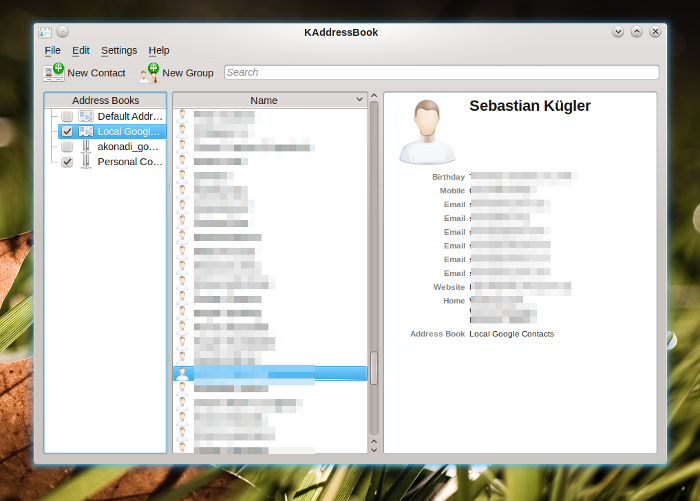
KAddressBook is already available in its Akonadi incarnationThe traditional Kontact, is of course still fully usable and we currently recommend this to end users. Kontact 4.4 is still actively maintained and supported, and is shipped by distributions along with KDE 4.5.0, so the current stable Kontact is 4.4.5. We did ship a new release of kdepimlibs, which are tested with Kontact 4.4.5 and are the basis for Kontact2 as well.

For normal workloads, KMail2 which is the heart of Kontact’s Mail component is already pretty usable. The focus of the stabilization and improvement efforts currently lies in the complex use cases common to hackers and email power users, such a different, high-volume email accounts, many large folders and a paranoid bunch of identities. Another area of focus is the migration of data, including the possibility to rollback to your “traditional” Kontact if you are not satisfied with the quality yet (please don’t forget to file bugs, so we can take proper care of those nasty insects).

Migration

Kontact2 only reads Kontact1’s configuration, but doesn’t change the original copy. Instead, a new configuration file derived from your old one will be used. So when first starting Kontact2, your “old” configuration, account setup, identities and filtering rules will be imported. KMail2 will also import locally cached emails, so you don’t have to download them all again. In the current state, user feedback from migration and usage is extremely valuable to the developers, so please give the next beta a whirl and report back to us, so we can improve on your experience. Of course, there are tools for importing and exporting data. During the migration, Kontact2 uses Kontact1’s existing downloaded email, so a lengthy re-download for offline reading is unnecessary.

If you’re not yet happy with the new Kontact, you can switch back to the old one, by re-installing the 4.4 Kontact.

What will KMail2 look like?

This might come as a little surprise to some, but in the initial version of KMail2, you won’t notice many differences to the traditional KMail1. This has a number of reasons: First of all, KMail’s UI is the result of years of polishing by the developers and a lot of feedback by the community. This won’t be thrown away for something that’s novel and cool, but might not satisfy most users. So KMail 2 will be a very straightforward port of KMail1, the UI will be mostly the same, while the underlying technology has changed completely. In the porting process to Akonadi, most of KMail1’s familiar UI has been kept.

The Akonadi-based Kontact betaYou might have noticed the first parts of KMail1 being converted. That is to say that the Kontact developers have worked towards the Akonadi port of KMail. The first, and actually one of the most central parts of KMail has already been introduced a while ago: the new listview. This listview is a rework of KMail’s list of messages to use the underlying Model-View-Controller design patterns that match Akonadi well. In Kontact 4.4, Kontact’s address book has been switched to use Akonadi. This first step in the migration was a bit painful, since it involved introducing a new infrastructure below applications that you use daily, and which you rely upon. The new possibilities are already making their way to the end users’ systems, for example in the calendar integration with the Plasma Desktop, which you can see in the screenshot. By clicking on the clock, you get the Plasma calendar which shows you your daily events. In the sceenshot, you can see the new version of KMail. As I’m using a full-HD display, I’ve enabled the widescreen layout of KMail. This makes it possible to see the whole email and a long enough list of others at once. A nice touch, which has been available for ages in KMail — just in case you wondered.

… but why the port then?

Simply put, traditional email clients don’t satisfy today’s expectations and work flows around personal data. Well, this of course needs some explanation: Already in times when KDE 3 was state-of-the-art, we noticed that more and more applications became interested in PIM data. Popular examples are Kopete, the instant messenger which held its own list of contacts, data which is mostly duplicated, including the inefficiency and maintenance nightmare you’re facing when you duplicate frequently changing information. So you want some kind of interface for contacts, and it should be something service-like, after all, you don’t want to run a seemingly unrelated application(your address book), just to get some more rich information about your chat contacts. Then, there’s of course my favourite example: Email monitoring. In essence, a full-fledged email client is a bit of an overkill, if you just want to know if there’s new email in your inbox. On of those overkill aspects is performance, or rather resource consumption. The solution to this is of course to share all this data. By using one central storage, and an easy to use access layer we can share the data across applications, and enable applications to make use of already available personal data. Enter Akonadi.

Akonadi has been built with performance and memory consumption in mind. Will Stephenson has put this very nicely: “In the 2.0 <= KDE <= 4.4 days, each program loaded the entire address book, calendars, and more specialised stuff like email, RSS feeds, and IM chat logs into its memory, so memory usage for PIM data increased linearly with the number of PIM apps running. Same goes for non-PIM apps using PIM data (the Kickoff menu's contact search data, Konqueror's Copy To IM Contact feature). Because Kontact is just a shell for KMail, KAddressbook, KOrganizer etc, it caused the same memory multiplication even though it's all one process.

With the Akonadi design, only the Akonadi process loads all the data into memory. Each PIM app then displays a portion of that data as it needs it, so the amount of extra resources taken by each extra PIM app is smaller, and the initial amount of memory used by each app is less. It should also provide extra stability, because each app no longer has to maintain its own data storage infrastructure, with all the caching, integrity and performance gotchas that keep computing science graduates employed.”

Plasma’s new email notifier

Plasma's Email Notifier (alpha version)During Akademy, I’ve picked up the work on Lion Mail again. It is not quite done yet, but already looking very good. I’m nearing feature completion for a first release now, so I’m almost sure it will become part of Plasma 4.6 in January, currently it’s in alpha state but quite fun already. Interested users can of course check out the source from SVN, it’s currently located in playground unti the code is ready for review by my eagle-eyed fellow hackers. Lion Mail is a set of Plasma widgets that can be used to display and manipulate emails in Plasma. In Tampere, Finland, during Akademy, I’ve discussed design and workflow of email notifications with a lot of people, after that I sat down for some serious hacking and have already implement most of what I would like to see, email-wise, in Plasma 4.6. The main goal is to be non-intrusive, and making it as easy as possible to manage your email in your daily workflow. The email notifier provides a queue of your emails, but does so without the need to switch to the full-blown KMail, so no full context / attention switch is needed if you just quickly want to see what’s going on in your inbox.

The new email notifier sits, as you might expect, in your panel’s notification area. It’s hidden by default, but becomes visible when there are new emails in your inbox. When you click on it, you get a list of your new messages. Those messages are expandable, so you can peek into the email to quickly judge if it’s something you want to act upon right away, or not. The individual messages are interactive. When hovered with the mouse, four buttons overlay the email. These buttons allow you to mark an email as read, or important (and of course remove those flags). Disappearing emails slowly fade out, so you have a couple of seconds to undo your action before the list is cleaned up.

You can choose to display new email in arbitrary foldersUnfortunately, most normal email notifiers are pretty useless for high-volume emailers, especially if you use server-side filtering (which you should because it’s much more convenient when using multiple clients, especially mobile ones). In my case, I have about 60 folders, on3 different email accounts (work-work, private, gmail). Emails are filtered before they reach the client. I am personally far less interested in new emails in all folders called “inbox”. The Plasma email notifier allows you to choose the folder you want it to monitor. You can also set up multiple folders. As a nice extra, you can choose to also display emails marked as important, either merged or in a separate list (actually, the latter is not implemented yet, but on my short-term TODO list :-)). Emails are draggable, so you can drag an email from the email notifier into a folder in KMail2 if you want to copy or move it there. As I mentioned before, we’re not actually dragging the email around, but an Akonadi reference as a URL. This is fully transparent between applications, and even across toolkit and access libraries. I’ve also written a full-fledged single email Plasmoid, which allows you to put individual emails on your desktop (or dashboard) for quick reference. Just drag the email from the list onto your desktop, and it’ll appear as Plasma widget there, expandable, with HTML if you’re into that. The missing bits are rather overseeable at this point: clearing the list, separate list for important emails, refreshing logic for individual folders and queuing the re-jigging of the list until the mouse moves out, so items don’t change under your mouse while clicking on them. Not just minor bugfixes, but at the current pace, also not a lot of work left to do.

PUSH IMAP

As you can imagine, the email notifier’s design suits itself very well for PUSH IMAP. PUSH IMAP means that instead of checking in intervals for new email, the server notifies your client when a new email comes in. This means less useless mail checks and more importantly instant notification when a new email arrives. With “instant” I mean within a couple of seconds. In my tests, it took between 3 and 17 seconds from pushing the “Send” button on one machine until the email showed up in the email notifier. That’s pretty neat compared to checking your email every 30 minutes or so. So it’s all the more important that new email notifications become too annoying, hence the non-intrusive approach to the UI. PUSH IMAP is currently only enabled for the inbox folder of a given IMAP account, and of course your server needs to support it. The first email received in Lion Mail using PUSH IMAP

Kontact Mobile

The migration of the desktop version of Kontact is another big step in Akonadi’s existence. Akonadi has its uses outside of Kontact on the desktop as well. The new Kontact Mobile suite builds on top of Akonadi as well, but offers a completely different UI, optimized for smartphones and touch-screen devices. Kontact mobile is part of the upcoming Kontact suite as well. The infrastructure is this way shared across the device spectrum while the user interface is optimized for a certain device and use case. Akonadi does the hard work of talking to all kinds of groupware servers in the background, and caching of this data if you want to make it available on the go. The Dot has an excellent article about Kontact mobile, including a cool screencast.

Beyond Groupware – Akonadi and the Social-Semantic Desktop

The new email notifier is a good example what Akonadi makes possible in the near future, but there are more things brewing in the kitchen. As Akonadi is a generic cache, it comes handy in a much wider number of use cases. In the future, Akonadi can take care of managing and caching all kinds of interesting data, as you can stuff into it what you want. One interesting case is managing your online photo collection. Akonadi can provide standardised photo streams locally on your machine which are backed up by online services. In the same vain, microblogging can be handled through Akonadi, free caching, searchability and semantic linking to your contact are made very easy this way. There is actually already a microblog resource for Akonadi available, I’ve heard rumours of a FlickR one as well…

Emails now also in the desktop searchAkonadi plugs into the Nepomuk semantic framework for its indexing and searching needs. Items in Akonadi are therefore magically available for applications using Nepomuk to query and display data. Tags and other metadata is shared across the desktop, arbitrary items can be linked semantically (think emails and attachments linked to contacts in your address book). Akonadi in Kontact does not only mean that Akonadi is coming to full bloom, but also the semantic desktop built on top of Nepomuk. One nice example is shown in the screenshot, where the KRunner mini-commandline (hit ALT+F2!) also finds emails now. Part of the semantic desktop are also the Activities, which provide context to applications. You can think of ‘context’ as a project your working on, your current location, and many other “metadata” of your workflow. One features of Lion Mail which has been part of its idea from the beginning is showing different sets of emails per activity, the email notifier is built with activities in mind.

Plasma’s dataengines provide another fantastic opportunity for Akonadi to shine. The Plasma team is working on a generic cache for data supplied by dataengines, the idea is to transparently allow caching of arbitrary data from dataengines, so offline usage becomes completely transparent for many Plasma widgets. Akonadi forms one of the cornerstones of Project Silk which aims at deeper integration of online services and content into the user experience.

Concluding

With all the above in mind, there’s little less than a revolution going on in the groupware area. Akonadi matures further and makes possible a full-fledged groupware client in the form of Kontact, with excellent scalability and extensibility. Akonadi is built with a whole spectrum of target devices in mind, which shows in the Kontact Mobile suite running successfully on a N900. With more applications being available in their Akonadi versions, Akonadi will become a lot more useful, and enhance many other applications in the process. Akonadi also allows for a better user experience around email and calendaring in the primary workspace. Groupware is becoming a generic service on the local client. The upcoming new Kontact groupware suite is only the tip of the iceberg of what’s coming thanks to Akonadi. Quite inspiring, isn’t it?

Special thanks go to Will Stephenson for proof-reading the article.

Working Upstream.

On the website of an Austrian (no kangaroos!) newspaper, I read an interview with Canonical’s Jono Bacon. In this interview, Jono talks about the process of developing central components of the desktop inside Canonical. The process is basically that Canonical’s design department, Ayatana develops components. When they are finished, they’re offered for inclusion into GNOME, which was not a successful in all cases yet. According to Jono this is "working upstream", explaining that in this context Ayatana is the upstream. GNOME is seen as a provider of components, building blocks for Ubuntu’s user experience.

The definition Jono handles of upstream development is quite different from how it works for me. I can speak of personal and professional experience in this context, as I have been working quite a lot on central components of the Plasma Desktop (and Netbook as well). I have done this work both, as a voluntary contributor in my Free time (pun intended), and continue to do so in my working hours for open-slx. open-slx happens to sell and support Linux deskop operating systems.

Nowadays, many of my contributions to Plasma and KDE in general are paid for by my employer, open-slx. As part of my job, I am allowed and intended to work inside KDE during working hours, this includes "hacking on Plasma stuff" as well as taking on some organizational load, such as working in the release team and the KDE e.V. Board. open-slx’ philosophy behind this is that it is essential to play nicely in the community as a company, and that selling a product which heavily relies on its user experience is made easier, not harder by working directly in the context and infrastructure of the project we intend to merge our creations into. In my case that’s KDE, and especially the Plasma team. This means that I commit my work directly to KDE’s source code repository, that design and technical decisions are being taken in the approriate upstream communities. This can happen for example during sessions at Akademy, at sprints, on IRC and most importantly on mailing lists such as plasma-devel@kde.org and kde-pim@kde.org.

The latter two are a nice example for a project I’m currently working on, the Akonadi-based email notification system. During Akademy, I sat together with a bunch of the KDE PIM developers, to design the new email notification system that will likely come along with Plasma and KDE PIM 4.6.0 next January. Over the past weeks, I’ve spent quite some hours on working out the plans. I’ve committed my changes to the code right away to KDE’s SVN to share them with others. Once the code is "good enough", it’ll be submitted for review and inclusion into Plasma or PIM, whatever makes more sense from a packaging point of view. It will be released together with Plasma 4.6 next year and through openSUSE 11.4 will be part of open-slx’s next product, the boxed version of openSUSE. This way, these contributions, the working hours my employer pays for trickle back into our product via downstream projects such as KDE Plasma and PIM teams, and openSUSE. The initial design of the new Plasma email notifications has actually been born during Camp KDE 2009 on Jamaica, but that’s a different story altogether. If you now are interested how that actually looks like, that will be the topic of another entry on this blog.

Let me get this straight, though. It makes sense to provide modifications to the user interface as add-ons that other companies with a similar product don’t ship. Also products based on Free Software need unique selling points in order to make their whole enterprise commercially interesting and viable, and thus make money flow into the development of Free Software.

On the licensing side, this is expressed in making it possible to write proprietary components, for example by using the LGPL license for libraries — Qt, kdelibs and libplasma are all licensed under the LGPL for exactly that reason. Technically, systems such as Plasma’s widgets which can replace any part of the whole Plasma Shell, be it the display of notifications (which Aurelien has actually proven by writing a Plasmoid that displays notifications according to Ayatana style guides), the taskbar, or all kinds of online services. From a branding point of view, the simplest case is probably slapping your branded wallpaper onto the default install. More advanced usages would be a customized Plasma theme, or maybe even "fingerprint animations", that make using your desktop feel a bit more special. For open-slx, Plasma turns out to be an excellent choice of toolkit to build an improved user experience upon, and that is true: we can virtually turn Plasma into any kind of product we like functionally, we can make it behave and look like exactly as we like, and we can maintain a clear separation between aspects we think are the unique selling point of our product, and the contributions we make directly upstream as part of being a good citizen in the KDE community.

The point here is that in order to sustain a Free Software eco-system such as KDE, or maybe GNOME (like in Canonical’s case) you need a healthy balance in your contributions to the upstream community, and your work to differentiate yourself commercially. It’s good practise to make a clear separation between the things you choose to be your USP and your Free Software contributions. Communicating clearly what your contributions are and where you are "commercially sensitive" is both essential: You want to create goodwill among developers that don’t get a paycheque from you (so-called "community support") when you need their help in a context that’s commercially sensitive to you, and which you want to keep separate for licensing and marketing reasons. Moreover, this clear distinction between your proprietary add-ons and your upstream contributions make it clear to customers why to buy your product, and not the competitor’s one.